01
Open the Knowledge Bases section
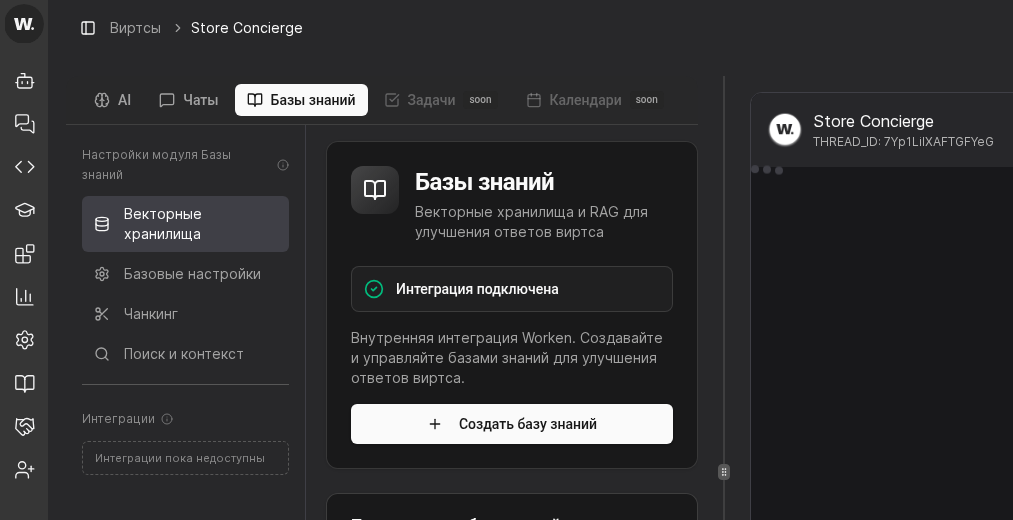
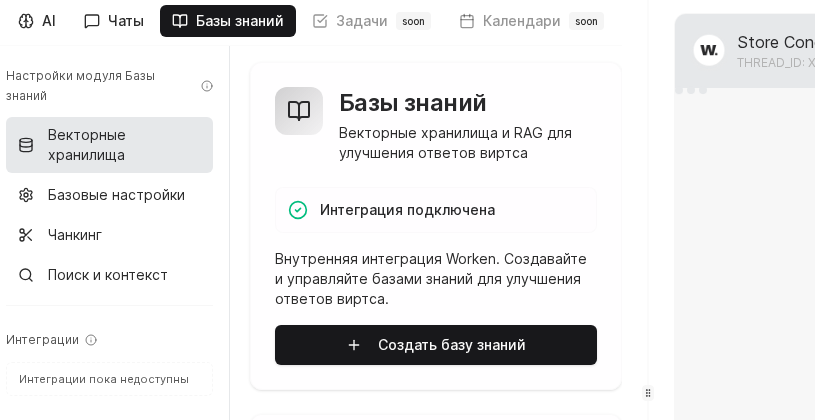
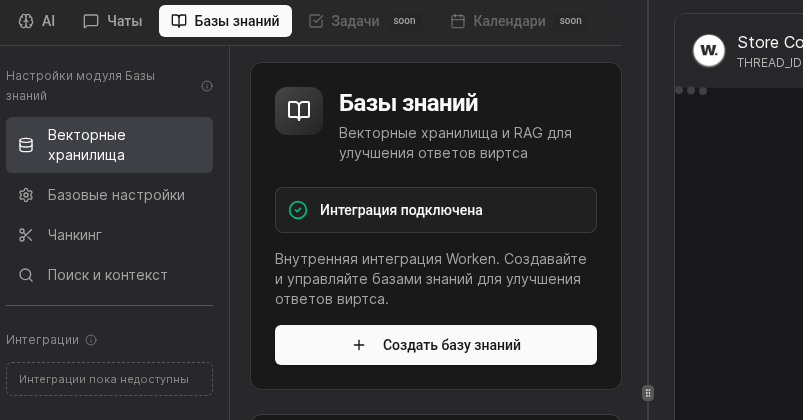
Open Knowledge Bases in the virt card and confirm that Vector stores is selected in the left panel. This is the starting screen for knowledge setup.
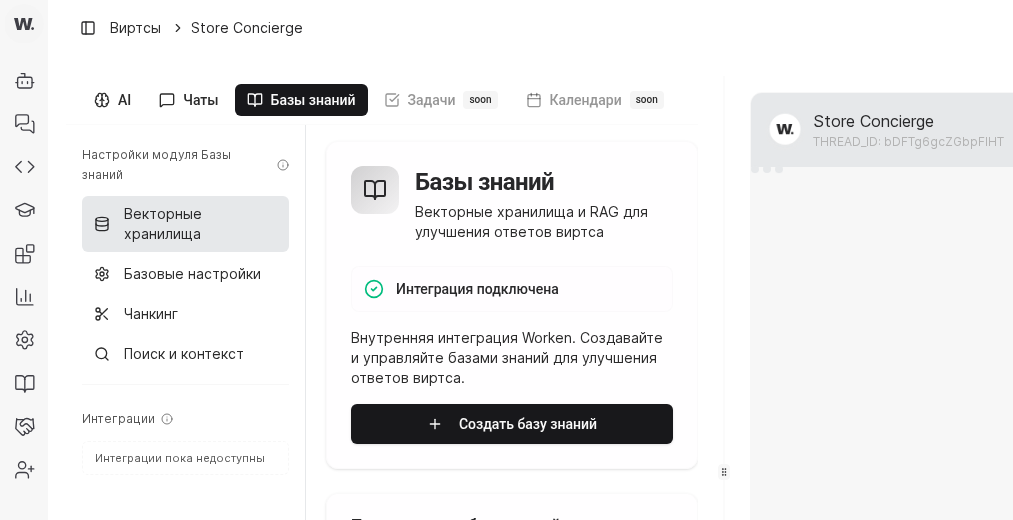

Knowledge bases turn your SOPs, FAQs, and spreadsheets into a single corpus that a virt can cite in every reply. Keep the documents tidy and current so workens answer with the exact voice and facts your brand expects.
Preconditions
Open Knowledge Bases in the virt card and confirm that Vector stores is selected in the left panel. This is the starting screen for knowledge setup.
First verify the Integration connected status on the card. Then click Create knowledge base to start the first collection with a clear name and description.
Switch to Basic settings and review all three controls: Embedding model, Relevance threshold, and default max results. Together they define how the base selects and ranks context for virt responses.
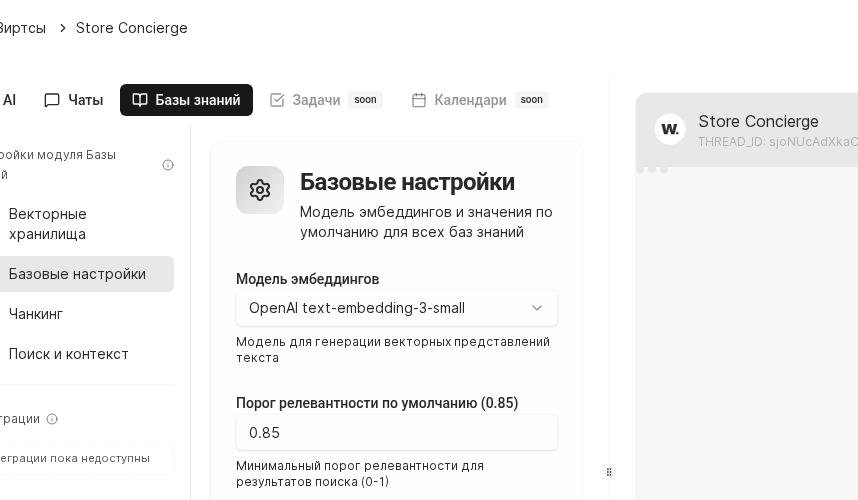
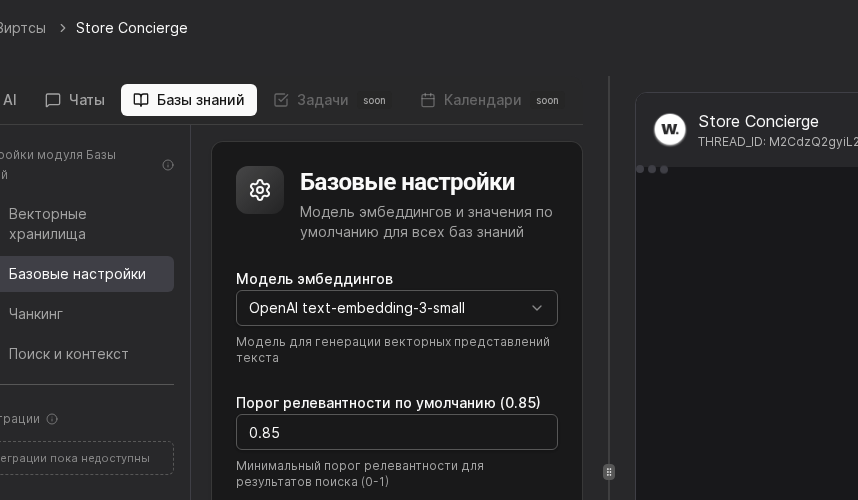
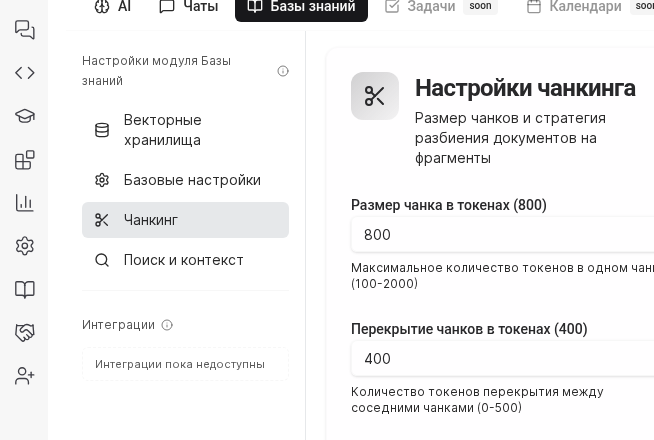
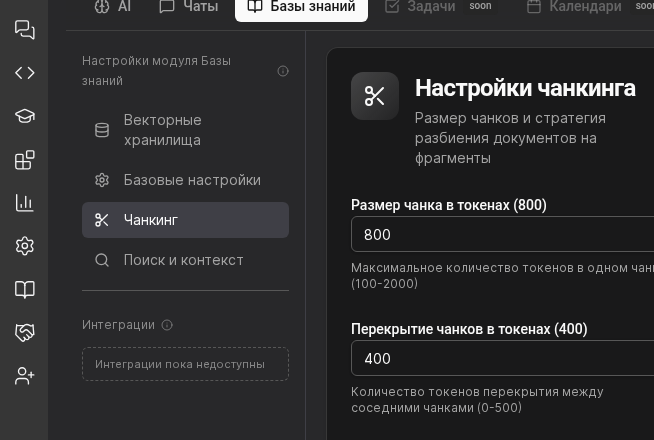
Open Chunking and tune chunk size, overlap, and split strategy. These settings control how documents are segmented before retrieval.
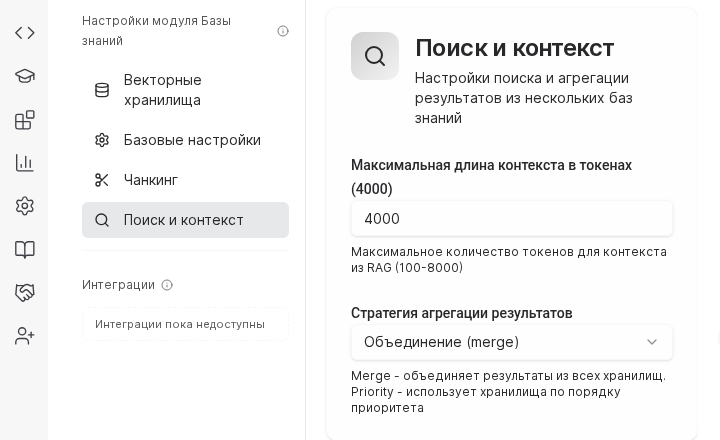
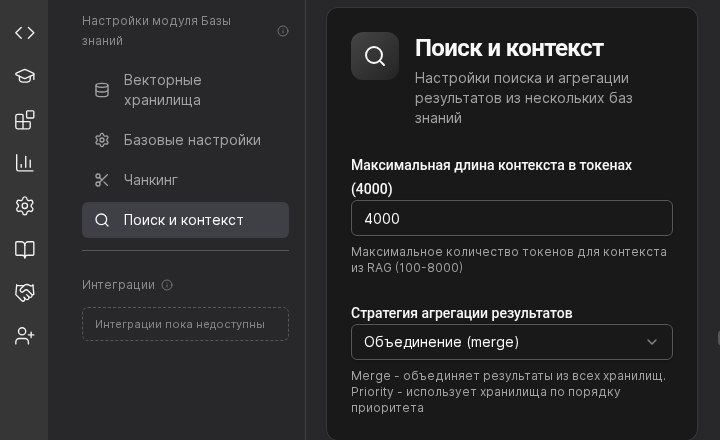
Switch to Search and context and set max context tokens plus aggregation strategy. These controls affect answer completeness, latency, and model cost.
TIP
Assign a single owner per base and record it in the description so everyone knows who maintains the source of truth.
Example
A support org split content into "Customer FAQ", "Operations Playbooks", and "Pricing Sheets". Each owner reviews updates monthly, and workens now answer billing and logistics questions without escalating to human agents.