01
Prepare the community token
Open Group Management → API usage → Keys, issue a key with message read and write scope, and copy the Group ID. Make sure private messages are enabled so visitors can reach the bot without joining.
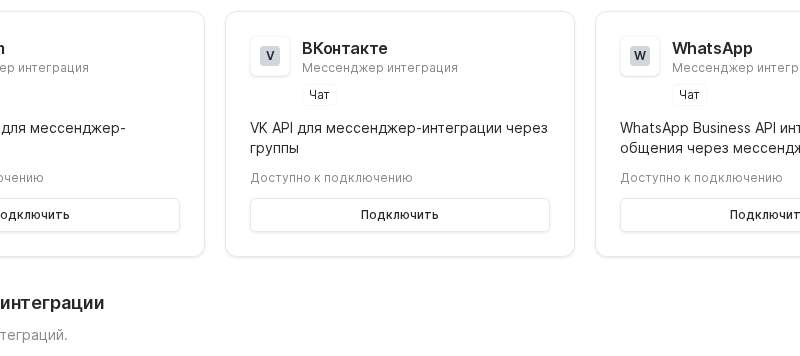
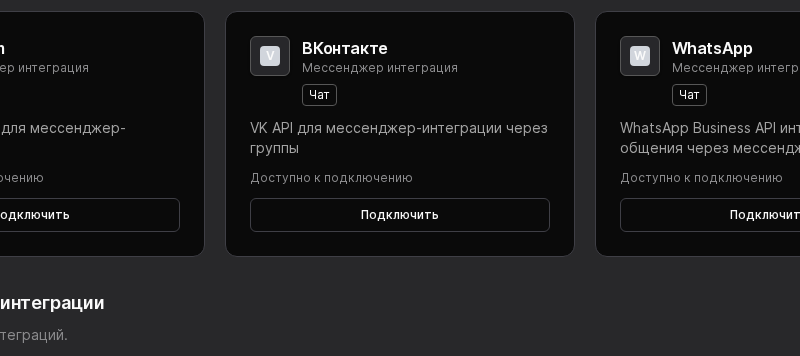

Link your VKontakte community to Worken so a virt can respond to private messages and reduce agent workload. The setup uses a group token plus the community ID.
Preconditions
Open Group Management → API usage → Keys, issue a key with message read and write scope, and copy the Group ID. Make sure private messages are enabled so visitors can reach the bot without joining.
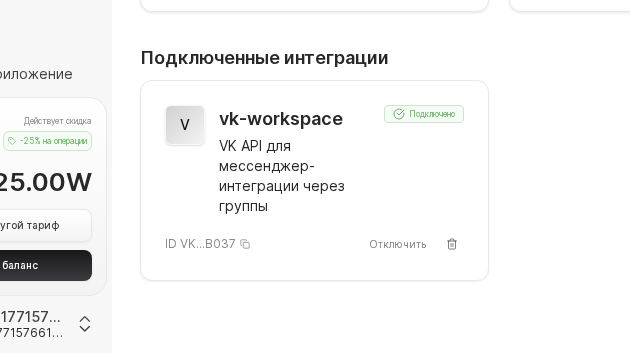
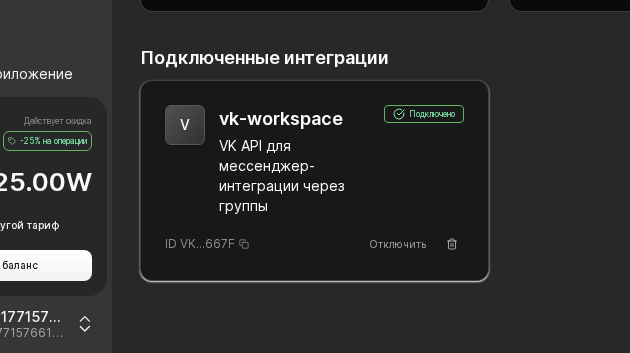
Navigate to Integrations → VKontakte, paste the token and Group ID, select your virt, and click Connect. When the status becomes Connected, the channel shows up in the virt card with scheduling options.
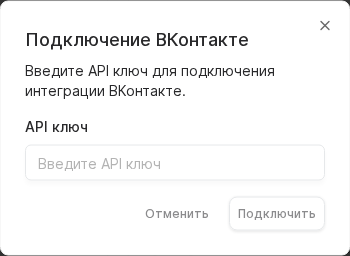
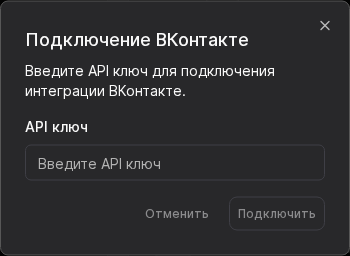
Send a test message from a personal VK account, attach a file, and confirm the virt replies with the right tone. Configure escalation rules so workens are notified when a customer requests a call or a refund.
WARNING
You can restrict VK tokens by IP. If you do, contact Worken support for the outbound IP list so the connection stays online. Rotate keys whenever an admin leaves the project to avoid unauthorized access.
Example
A sushi chain issues a token for its community, instructs the virt to greet guests, describe delivery slots, and schedule reservations. Soon 80 percent of VK questions receive instant answers, while live agents handle only escalations tracked inside Worken.
Learn more
See every connector in one place
Learn more
Embed chat anywhere on your site
Learn more
Reply to users right inside Odnoklassniki
Learn more
Integrate with the Max enterprise messenger
Learn more
Sync Issues and Discussions conversations