01
Open the “Limits” section
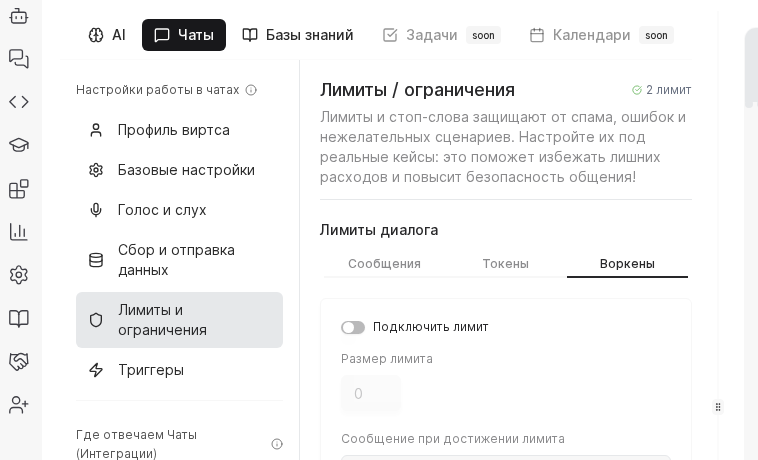
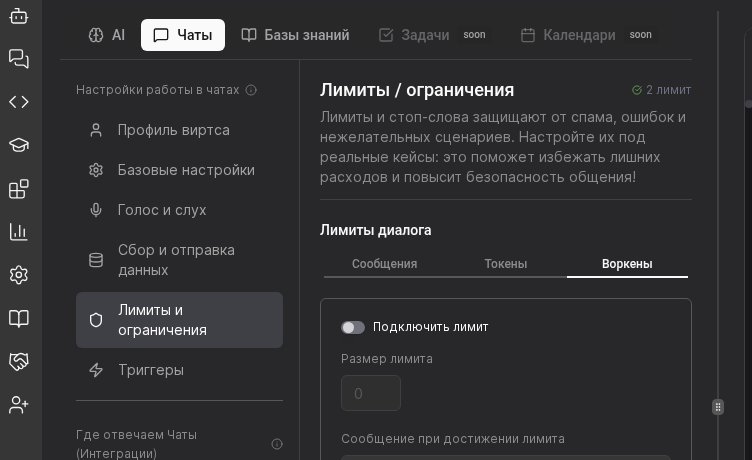
Select the Virts and navigate to Limits. The page summarizes current caps plus the alert status so you instantly know whether safeguards are active.
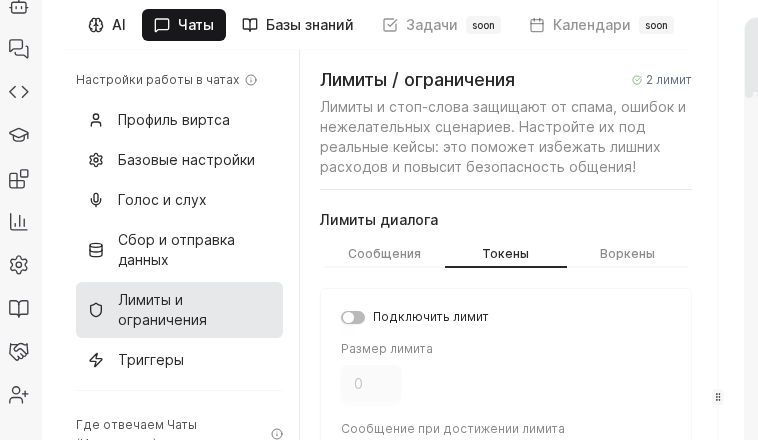
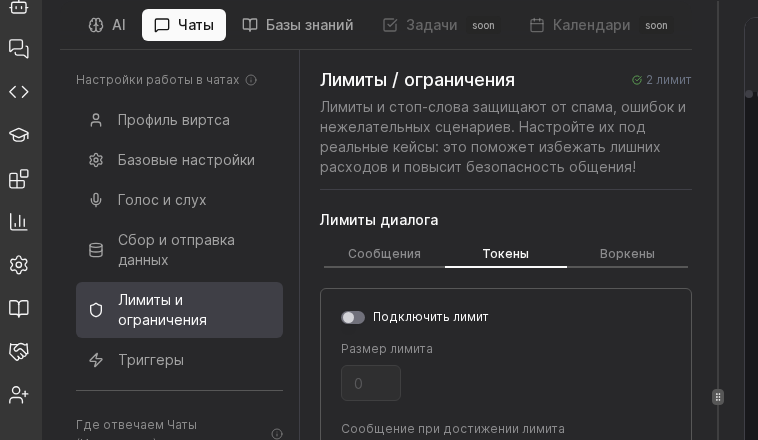

Limits keep spending predictable: they cap how many messages a Virts can exchange, how many tokens a reply consumes, and how many Workens leave the budget each day.
Preconditions
Select the Virts and navigate to Limits. The page summarizes current caps plus the alert status so you instantly know whether safeguards are active.
Set the maximum number of messages per dialog and per participant, then specify token limits for a single reply, an entire conversation, and the day. These caps prevent runaway loops or very long answers from draining the budget.
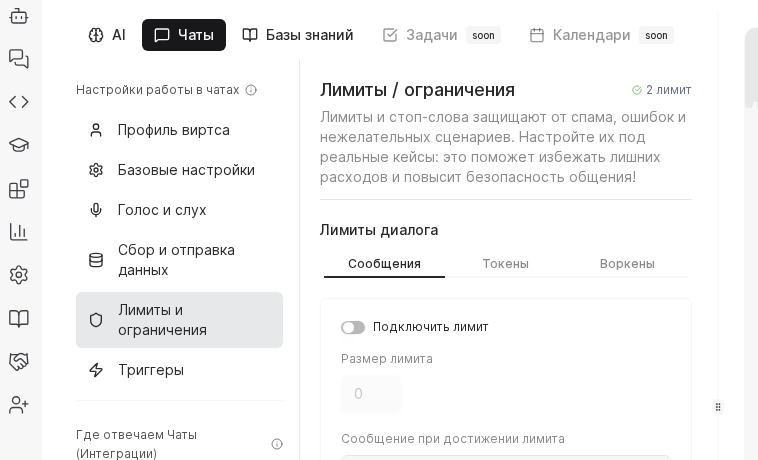
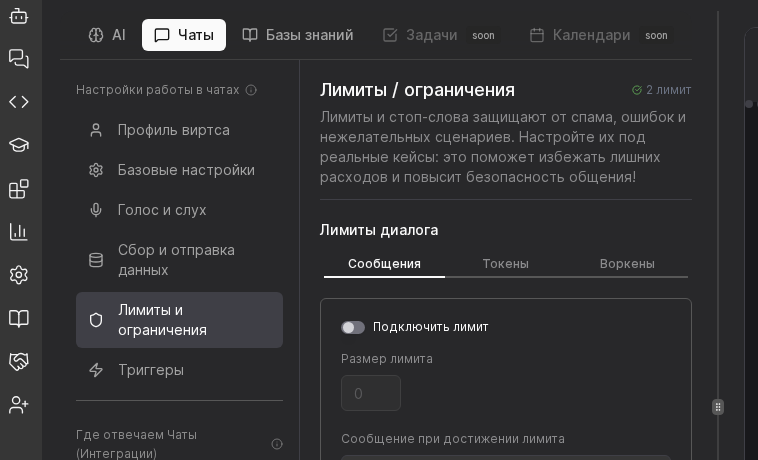
Enter Worken allowances per dialog, day, and month. A common pattern is 5,000 W and a 15-minute timeout for sandbox Virts, then 20,000 W per day and 60-minute timeouts in production. Save and enable notifications so the team hears about spikes immediately.
TIP
Clone the Virts before large experiments and assign a tighter daily Worken limit to the clone. You get data from the experiment without risking the main channel’s budget.
Example
A marketplace keeps testing Virts at 20 messages and 5,000 W, while the production assistant uses 100 messages and 20,000 W. When daily spend hits 80%, Worken posts a webhook to Slack so managers can reduce response length until traffic stabilizes.