01
Open the “Voice & Hearing” section
Select the Virts, go to the Chats tab, and open Voice & Hearing. Here you can control how the Virts reacts to voice vs. text messages and how it speaks back to the user.
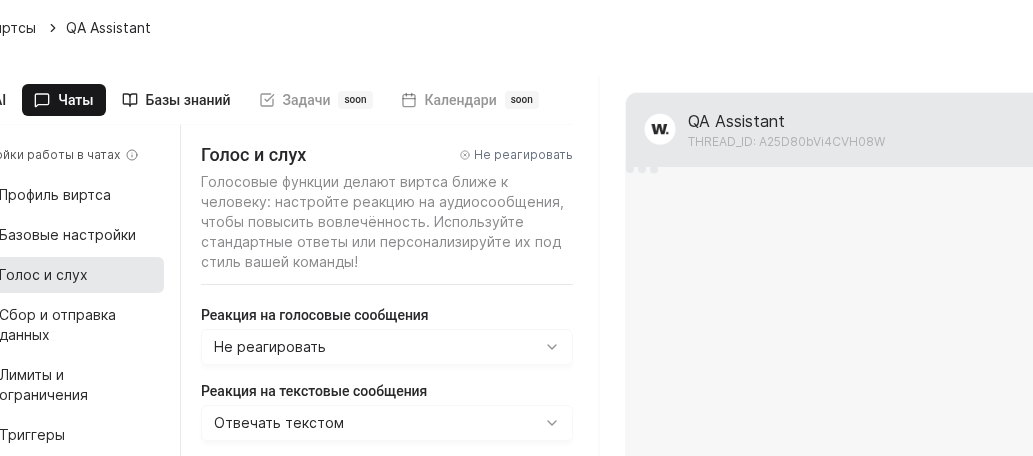
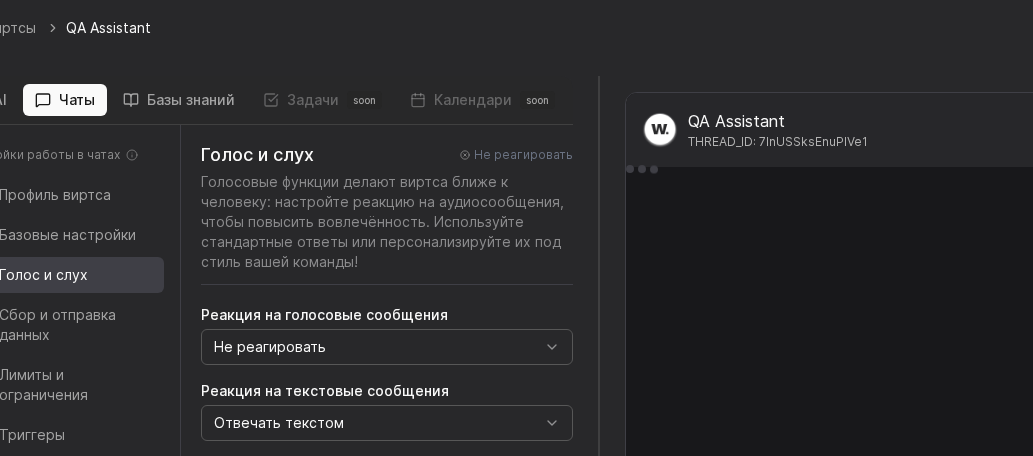

Voice and hearing settings let the Virts listen to voice notes, transcribe them instantly, and respond with natural-sounding speech.
Preconditions
Select the Virts, go to the Chats tab, and open Voice & Hearing. Here you can control how the Virts reacts to voice vs. text messages and how it speaks back to the user.
Turn on the voice-message reaction, confirm the fallback behavior for text messages, and verify the STT language. This ensures the Virts automatically transcribes every audio snippet without routing it to a live agent.
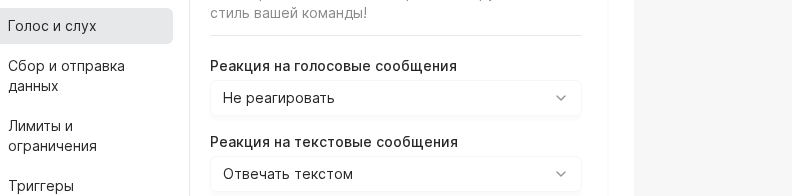
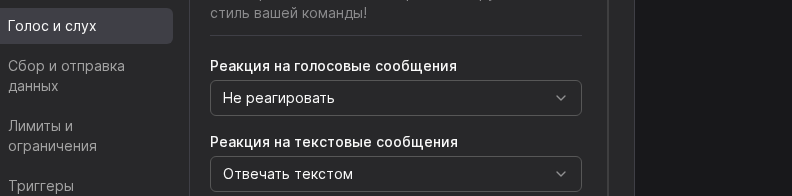
Choose the voice timbre that matches your brand and set the TTS model. Save the settings and send a test phrase to hear the result directly in the console.


WARNING
Voice replies consume more tokens and Workens than plain text. Keep an eye on daily budgets or set spending alerts before rolling audio assistants into production campaigns.
Example
A retail bank enables voice notes in WhatsApp. Customers dictate the last digits of their card, the Virts transcribes the input, checks the request through integrations, and answers with tts-1-hd so the reply sounds natural on the phone line.
Learn more
Central place for account controls
Learn more
Define tone, role, and goals
Learn more
Pick the model and response style
Learn more
Manage what the bot remembers
Learn more
Connect plugins and automations
Learn more
Specify how user data is stored