01
Create a widget key
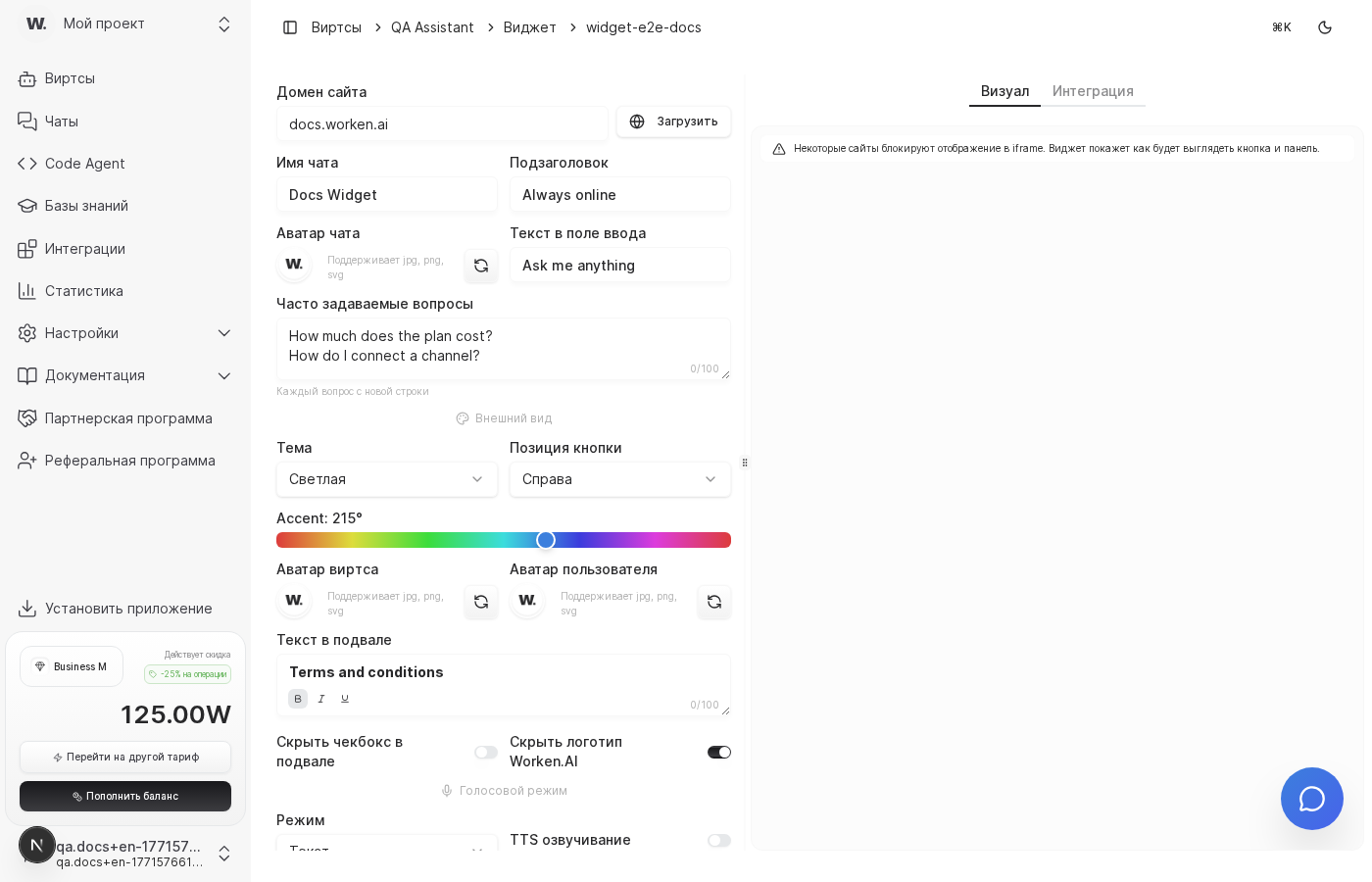
Open Settings → API Keys and click Create key. Save the key in your secrets manager, then continue to widget settings to copy the script snippet tied to this virt.



Embed the Worken widget on your site so a virt can help visitors without redirecting them to messengers. The script works with any CMS or static site.
Preconditions
Open Settings → API Keys and click Create key. Save the key in your secrets manager, then continue to widget settings to copy the script snippet tied to this virt.
Paste the snippet before </body> on every page that should show the chat. If you use a website builder, drop it into a custom HTML block. Publish the changes and reload the page to confirm the chat button appears.
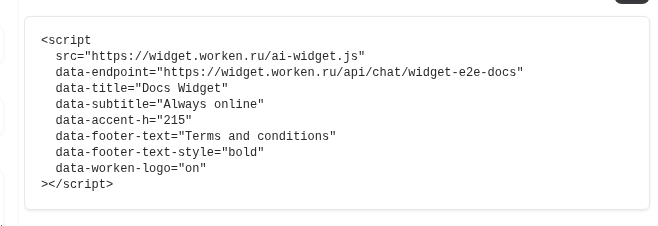
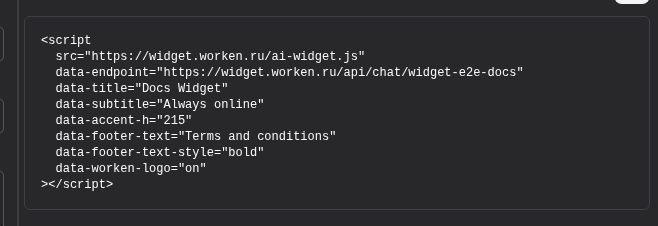
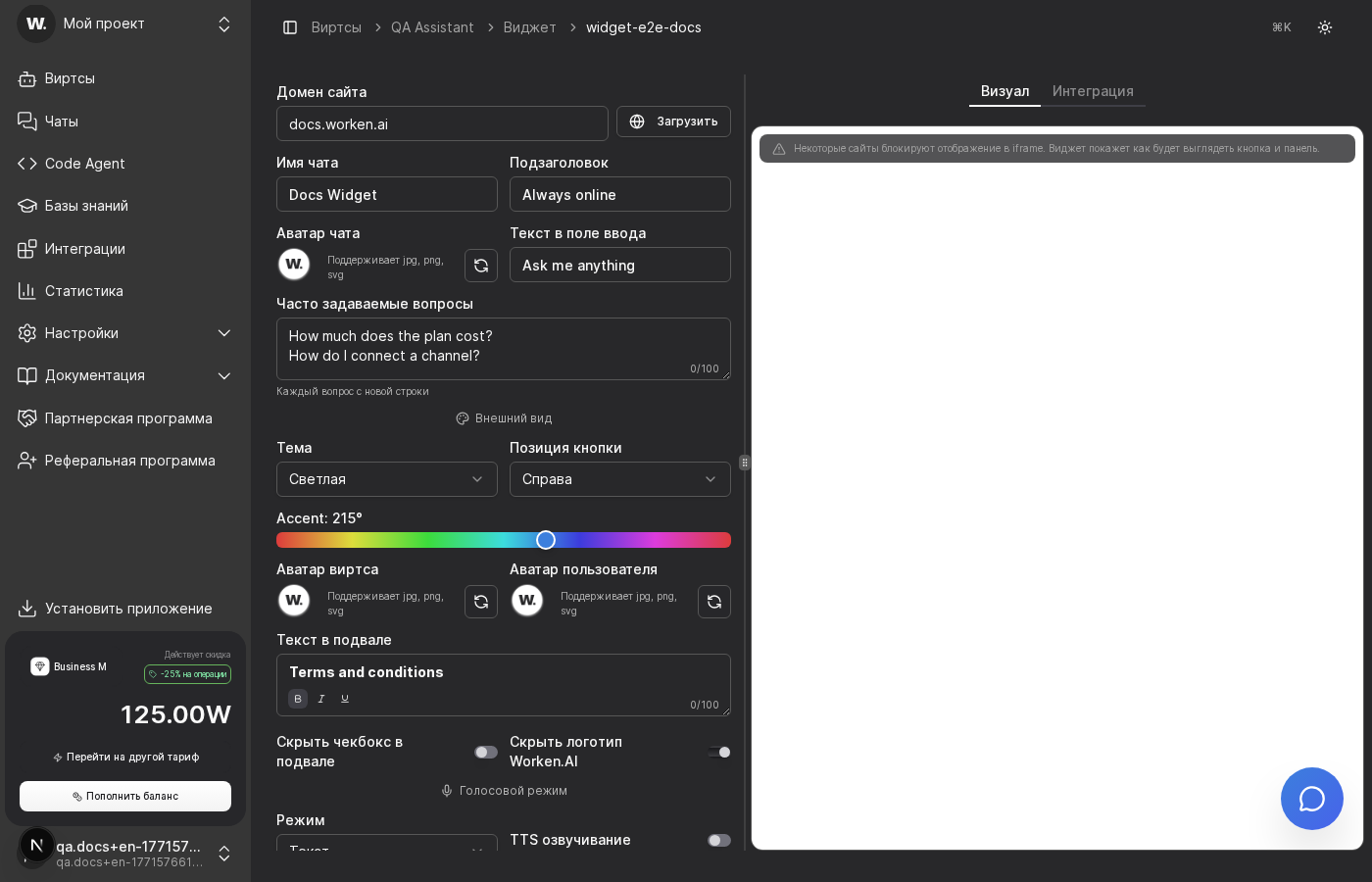
Inside the channel card tweak colors, greeting text, and placement. Open the site in an incognito window, send two or three questions, and verify the virt escalates to workens only when needed. Connect optional tools (CRM, analytics) if you want to push widget leads elsewhere.
WARNING
Treat the widget script like a secret. Anyone with the snippet could embed your virt on another site. Rotate the key from the API Keys screen if the snippet leaks and update every page where it was installed.
Example
A veterinary clinic issues a widget key, drops the script into its website template, and instructs the virt to ask for the pet type, reason for the visit, and a preferred time slot. Most visitors now book appointments in chat while workens only confirm the visits.